What's the best way to provide add-to-calendar for podcast episode drops?
Provide add to calendar for podcast episode drops with a subscription calendar for your release schedule and a single calendar link for premieres and live recordings.
Subscribe to receive articles directly in your inbox
Practical tips to get more people to show up: event promotion, RSVPs and calendar marketing. No spam, unsubscribe anytime.


Why calendar links beat reminder emails
An Add to Calendar link puts your event straight into your guest's own calendar. One click is enough, and the reminder pops up 30 minutes before it starts.
- Works with Google, Apple, Outlook, Office 365 and Yahoo
- Every guest sees the event in their own time zone
- Meeting links are included in the invite
- See how many people added your event
How to create your first calendar link
Create an event, share the link and follow the results, as explained in how it works.
- Add a title, date and time
- Choose a location or paste a meeting link
- Share the link in your email or on your website
- Follow views and calendar adds

Use calendar links in every campaign
Put the same link in your newsletter, on social media and on your website, and see which channel brings in the most calendar adds.
Collect RSVPs for your next event
Ask guests if they are coming, collect custom answers and export the guest list in one click.
“The best-performing call-to-action is Add to Calendar.”
Which event are you planning next?
Start with a free account and create unlimited events with CalendarLink. No credit card required.
Podcast apps are good at delivering a new podcast episode, but they're less good at building anticipation for it. A notification arrives when the episode is already out, and it competes with everything else on a listener's phone. A spot in their calendar works differently: it tells your audience in advance when the next drop is coming. At CalendarLink, we've seen creators use the calendar as a way to turn a release schedule into a recurring appointment with their audience.
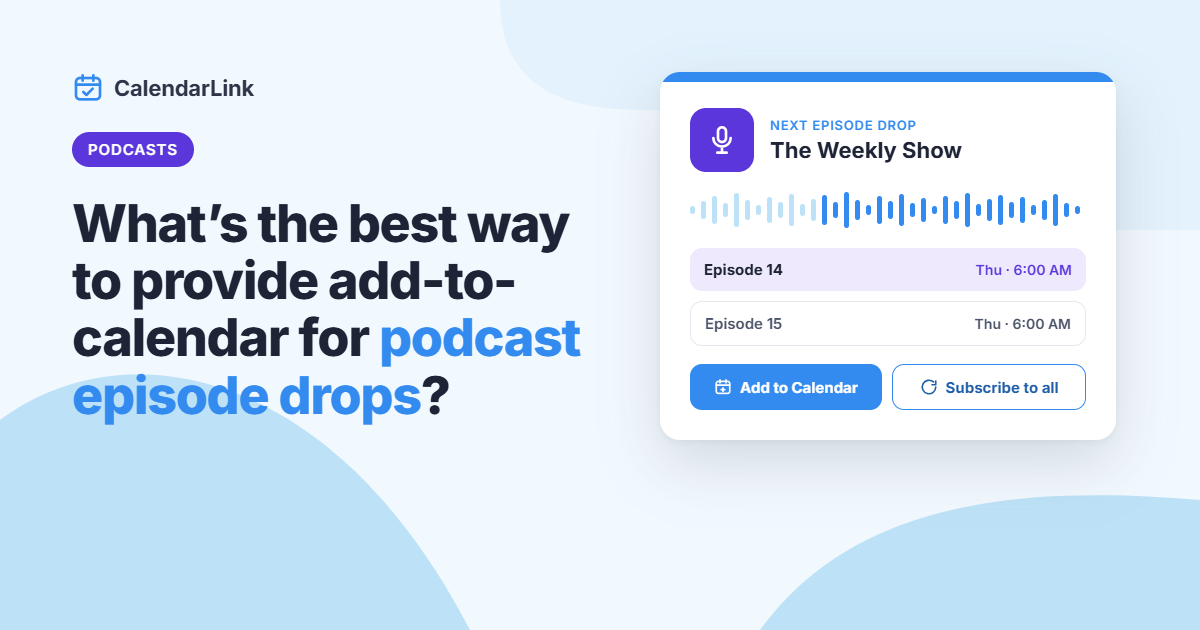
Which approach works best? The best way to provide add-to-calendar for podcast episode drops is to offer a subscription calendar for your regular release schedule, and a single Add to Calendar link for big moments such as a season premiere or a live recording. New episodes then appear in your subscribers' calendars automatically, while your feed and podcast apps stay the place to listen. Below, we explain how to set this up and how to promote it.
The best way to provide add-to-calendar for podcast episode drops
You can set this up in six steps:
- Decide which drops belong in the calendar, such as every podcast episode or only special moments.
- Create one collection for your show, which becomes your subscription calendar.
- Add each upcoming podcast episode as an individual or recurring event.
- Write clear event details, with a link to your show.
- Share the subscribe link in your show notes, newsletter and website.
- Create separate links for big moments, such as a premiere or a live recording.
In CalendarLink, one collection page handles the subscription, and each event can have its own page and link. Your listeners don't need an account, and they can use the calendar app they already have.
When does a calendar add something to podcast notifications?
Let's be honest: a calendar doesn't replace your RSS feed or the notifications in Apple Podcasts or Spotify. Someone who follows your show will still receive each new podcast episode in their app. A calendar is useful when the moment of release matters, or when you want to reach people before the drop.
It adds the most value in these situations:
- Fixed release days. If your podcast schedule has a fixed slot every Tuesday morning, a calendar entry helps turn listening into a habit.
- Season launches. After a break, listeners can easily forget that your show exists. A date in their calendar brings them back.
- Limited series. With a set number of podcast episodes, the calendar gives your audience the complete schedule at a glance.
- Early access and member podcast episodes. When a drop is tied to a membership, the calendar shows members what they're getting and when.
- Live recordings and premieres. A live podcast or a video premiere has a fixed start time, so a calendar entry makes a direct difference.
If your schedule changes often or your audience only listens to the back catalog, a calendar adds less. In that case, one link for your next big moment is often enough.
Subscription calendar or single link: which do you need?
These two options solve different problems, and many shows use both.
A subscription calendar suits a recurring podcast release schedule. Listeners subscribe once, and all new and changed events in your collection then appear in their calendar automatically. Updates usually arrive within 12 hours and no later than 24 hours, so add each new podcast episode well ahead of the release date.
A single Add to Calendar link suits a one-off moment, such as a podcast launch or season premiere. It takes one click to save, which makes it easier to promote than a subscription. Do keep in mind that this is a snapshot: people who saved the event keep the version they saved, so later changes to the date won't reach their calendars.
As a rule of thumb, use the subscription calendar for your schedule, and the single link for moments you promote on their own. If the date of a drop could still change, make sure it's in a collection that people subscribe to, or wait to promote the link until the date is final.
How to set up add-to-calendar for your podcast in CalendarLink
Setting up your podcast calendar takes a little time at the start, and then it mostly runs by itself.
Step 1: Create a collection for your show
Go to Event collections, select Create new, and enter your show's name and a short description. Leave Show 'Add to calendar' button on, because this is the button listeners use to subscribe. Add your logo and colors through a design, so the page looks like your show.
Step 2: Add your podcast episodes
Choose the approach that matches your schedule:
- Recurring event: for a fixed rhythm, such as every Tuesday at 9:00. You set the interval, the weekday and an end date if there is one. Each series creates up to 50 events ahead and adds new ones as dates pass.
- Separate events: for irregular schedules or patterns such as "the first Thursday of the month", which a recurring series doesn't support. Create each drop as its own event in the same collection.
You can change one date in a recurring series when a podcast episode moves. It's then taken out of the series, so later changes to the series no longer apply to that date.
Step 3: Choose whether to ask for details
Turn on Require registration in your collection settings if you want subscribers to enter their name and email first. This helps you grow your own list, which is useful because podcast platforms share little information about individual listeners. Leave it off if you want to make subscribing as easy as possible. Your plan determines the number of active subscribers per collection: 10 on Free, 100 on Startup and 10,000 on Business.
Step 4: Share your collection page
Copy the link to your collection page and share it wherever your audience finds you. Visitors click the button, choose their calendar app and confirm in that app. Our guide on creating a subscription calendar covers this process in more detail.
What to put in your podcast episode event
The calendar entry is a small piece of promotion in itself, so make it count. These details work well:
- A clear title: include your show's name, such as "The Growth Show: new episode". If you already know the guest and don't mind announcing them, add their name for a stronger reason to listen.
- A realistic time: use the actual release time. Your audience sees the event page in their own time zone, which helps when you have listeners in several countries.
- A short duration: a release isn't a meeting, so block only 15 to 30 minutes. Otherwise, the entry takes up space in someone's working day.
- A link to listen: put your show page in the description, not a link to a specific podcast episode that doesn't exist yet. Your show page always works, also for people who see the entry later.
- A one-line teaser: tell listeners what's coming and why it's worth their time.
If you plan to add a future podcast episode to the calendar before the title is final, use a general title first and update it later. Subscribers will see the change when their calendar refreshes, usually within a day.
How to automate your podcast release schedule
Do you publish often? Then you won't want to enter every drop by hand. CalendarLink works with Zapier, Make and n8n on all plans, so you can create events from your existing planning. For example, a new row in your content calendar in Airtable or Google Sheets can create an event in your show's collection. This fits well if you already keep a podcast content calendar, because your planning then feeds your listeners' calendars directly.
Hosting platforms can play a part as well. CalendarLink has integration pages for tools such as Podpage and Captivate. Before you build a workflow, check what triggers your host offers. Some triggers, like Transistor's "Episode Published" trigger in Zapier, fire at the moment a podcast episode goes live. That's useful for logging or announcing the episode, but too late to tell listeners in advance. For advance notice, base your automation on your planning instead of your host.
Teams with their own software can also work with Smart Links, which create an event from the details in the link, or with the CalendarLink API. We describe these options in our guide to generating calendar links at scale.
Where to promote your podcast calendar
A subscription calendar only works if people know about it. In practice, it fits easily into your existing podcast promotion:
- Show notes: add one fixed line with the subscribe link to every podcast episode.
- Your outro: mention it out loud. A short, easy address works best here, because nobody can click while they're listening.
- Your website: place a button on your show page, next to the links to the podcast apps.
- Your newsletter: add a button or subscribe link to the email, especially before a new season.
- Social media: share an image of the event or the link in your bio. For events, you can download an image card or QR code from the sharing options.
Give listeners a clear reason to subscribe. "Never miss a drop" says little, but "Get every release date of season three in your calendar" tells them exactly what they'll receive. Our article on subscription calendars for recurring events and content drops has more ideas for spreading the word.
How to handle live recordings and premieres
Live moments are where a calendar makes the biggest difference, because the start time really matters. Create a separate event with the exact start time, and add the streaming link as the location if it's a video call or webinar tool, such as Zoom. For other platforms, such as a YouTube premiere, put the link in the description.
For an in-person or limited live podcast recording, turn on RSVP. You can then set a maximum number of attendees and a deadline, ask a question or two, and download the guest list. After responding, your guests can add the recording to their calendar right away.
For the wider approach to a release plan, including how to involve fans, take a look at our guide on a content calendar fans can subscribe to.
Who is this approach for?
Calendar links help any show with drops that are worth waiting for. We see them work particularly well for:
- Independent podcasters building a listening habit around a fixed release day.
- Podcast networks and studios managing the schedules of several shows, with one collection per show.
- Brands with a company podcast that want to connect episodes to their newsletter and website.
- Creators with memberships offering early access or bonus podcast episodes.
- Live shows and event podcasts recording in front of an audience.
Why choose CalendarLink for your podcast calendar?
CalendarLink gives you both options in one place: a subscription calendar for your schedule and an Add to Calendar link for each special moment. Listeners can use Google Calendar, Apple Calendar, Office 365, Outlook online or an iCal file, without creating an account. Your show gets its own collection page, in your own colors and with your own logo.
With analytics, available from the Startup plan, you can see visitors and calendar adds, and the number of active subscribers shows how many calendars still sync your collection. If you run several shows, you can use a separate collection and design for each one. All details are on our pricing page.
Frequently asked questions about add-to-calendar for podcasts
Can listeners add a podcast episode to their calendar?
Yes. You create an event for the release and share its link or button. Listeners choose their calendar app and save the event. To cover every upcoming podcast episode at once, they can subscribe to your show's collection instead.
Does a calendar replace podcast notifications?
No. Your RSS feed and podcast apps still deliver the episodes and send their own notifications. A calendar shows listeners in advance when the next drop is coming, which is especially useful for fixed release days and season launches.
How do new podcast episodes reach subscribers?
When you add an event to your collection, it appears automatically in the calendars of your subscribers. This usually happens within 12 hours and no later than 24 hours. Outlook can take longer, so add each podcast episode well before the release date.
What happens when a release date changes?
Subscribers get the new date automatically when their calendar refreshes. People who saved a single event keep the old version, because changes don't reach those calendars. That's why we recommend the subscription for anything that could still move.
Can I see how many people subscribed?
Yes. Your collection page shows the number of active subscribers. A subscriber counts as long as their calendar keeps syncing, and drops off after 7 days without a sync.
Conclusion
The best way to provide add-to-calendar for podcast episode drops is to combine two things: a subscription calendar for your release schedule and a single link for your biggest moments. Podcast apps remain the place to listen, while the calendar makes sure the next drop is on your audience's radar before it arrives.
Is your next season already planned? Set up your show's calendar today and share it in your next episode. You can start with a free subscription calendar on CalendarLink.