
How do I track the performance of Add to Calendar buttons by placement?
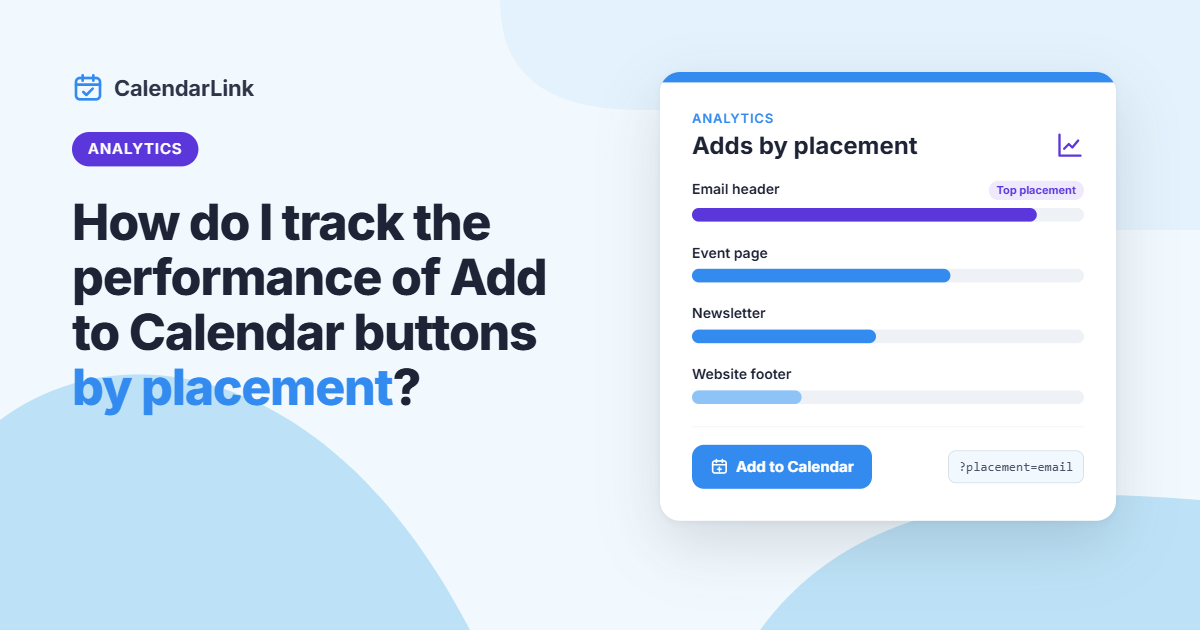
Track your Add to Calendar buttons by placement: give each spot its own button and tracking values, and compare the results per placement.
Subscribe to receive articles directly in your inbox
Practical tips to get more people to show up: event promotion, RSVPs and calendar marketing. No spam, unsubscribe anytime.


Why calendar links beat reminder emails
An Add to Calendar link puts your event straight into your guest's own calendar. One click is enough, and the reminder pops up 30 minutes before it starts.
- Works with Google, Apple, Outlook, Office 365 and Yahoo
- Every guest sees the event in their own time zone
- Meeting links are included in the invite
- See how many people added your event
How to create your first calendar link
Create an event, share the link and follow the results, as explained in how it works.
- Add a title, date and time
- Choose a location or paste a meeting link
- Share the link in your email or on your website
- Follow views and calendar adds

Use calendar links in every campaign
Put the same link in your newsletter, on social media and on your website, and see which channel brings in the most calendar adds.
Collect RSVPs for your next event
Ask guests if they are coming, collect custom answers and export the guest list in one click.
“The best-performing call-to-action is Add to Calendar.”
Which event are you planning next?
Start with a free account and create unlimited events with CalendarLink. No credit card required.
Where does your Add to Calendar button actually work? Most teams place one in the hero of the event page, another in the confirmation message and a third in the newsletter, and then look at one total. That total tells you how many people added the event, but it doesn't tell you which button did the work. At CalendarLink, we've found that this is where a lot of useful insight gets lost, because small changes in placement are among the easiest things to test.
The answer is simpler than it sounds. You track the performance of Add to Calendar buttons by placement by giving every placement its own button with its own tracking values, using one fixed naming system, and comparing the results per placement. For clicks on your own website, you can add a click event in Google Analytics 4 as well. Below, we show how to set this up and how to read the results.
How to track Add to Calendar buttons by placement
Tracking by placement comes down to five steps:
- List every placement where your Add to Calendar button appears.
- Agree on a naming system, so every placement gets one clear label.
- Create a separate button per placement, with its own tracking values.
- Add click tracking on your own website if you want more detail.
- Compare the results fairly, taking into account how many people saw each button.
In CalendarLink, you handle step 3 in the Advanced section of your event, and the results appear in Analytics. Source tracking requires the Business plan.
Step 1: Map your placements
Before you measure anything, write down where your Add to Calendar buttons appear. A placement is the specific spot on a page or in a message, not just the channel. Your newsletter is a channel, while the button at the top of the newsletter and the button at the bottom are two placements.
Common placements are:
- Event page: in the hero, below the program, next to the speakers or in a sticky bar.
- Registration flow: on the thank-you page or in the confirmation message.
- Email: at the top of the invitation, at the bottom, or in a reminder.
- Blog posts and resource pages: in the middle of the text or at the end.
- Social media and bios: on a link-in-bio page or in a pinned post.
Keep the list manageable. Tracking six placements you actually compare is more useful than tracking twenty you never look at. If you're still deciding where to put your buttons, our guide on placing an add to calendar on your website gives you a good starting point.
Step 2: Agree on a naming system
Tracking only works when everyone labels links the same way. CalendarLink's source tracking has four fields, based on UTM parameters: source, medium, campaign name and campaign ID. A system that works well for placements looks like this:
- Source: where the button appears, such as website or newsletter.
- Medium: the type of channel, such as web, email or social.
- Campaign name: the event or campaign, such as summit-2027.
- Campaign ID: the placement itself, such as hero, sidebar, email-top or email-bottom.
Many marketers use utm_content to tell placements apart. In CalendarLink, we recommend using the campaign ID field for this, because it has its own chart under Analytics.
Keep the values in lowercase and use the same spelling every time, because "Newsletter" and "newsletter" count as two different values. Put your naming system in a shared document, so that colleagues and agencies use the same labels.
Step 3: Create a separate button per placement in CalendarLink
Now you can create the Add to Calendar buttons themselves. In CalendarLink, it takes only a few minutes per placement:
- Open your event and scroll to Advanced, below the widgets.
- Under Source tracking, enter the source, medium, campaign name and campaign ID for this placement.
- Choose the Add to Calendar button you need from the sharing options: a row of buttons, a single button or a dropdown button.
- Click Copy HTML and paste the code into that specific spot on your website or in your email.
- Repeat these steps for the next placement, with a new campaign ID.
The tracking values are added to the event page link, the buttons and the direct calendar links. Note that these fields aren't saved, so you need to enter them each time you copy an Add to Calendar button. It helps to keep your naming system open while you work.
For email, choose Email automation or Simple email in the sharing options, so you get a version that suits your email tool. For RSVP events, use a button that opens the event page, so guests can complete the form there. You'll find more tips in our guide to add to calendar links in email.
Not on the Business plan? You can still see visitors and calendar adds per event on the Startup plan, and on your own website you can measure clicks per placement with Google Analytics, as we explain below. For a one-off event, the single event license on our pricing page gives you Business features for that event.
Step 4: Add click tracking on your own website
Source tracking shows what comes in at CalendarLink. If your Add to Calendar buttons are on your own website, you can also measure clicks with your own analytics. This gives you the click data right next to the rest of your website data, such as page views and conversions.
With Google Tag Manager and Google Analytics 4, the setup looks like this:
- Mark each placement. Place the Add to Calendar button code inside an element with its own ID, such as atc-hero or atc-sidebar.
- Create a click trigger. In Tag Manager, create a trigger for clicks on links, and limit it to links that contain calendarlink.com.
- Send an event to GA4. Create a GA4 event tag named add_to_calendar_click, with a parameter called placement that holds the ID of the element.
- Register the parameter. In GA4 Admin, add placement as an event-scoped custom dimension, so it shows up in your reports.
- Test it. Use Tag Assistant and the GA4 DebugView to check that each Add to Calendar button sends the right placement.
The exact settings depend on how your website is built, so ask your developer if you get stuck. Also remember what this data shows. A click tells you that someone opened the calendar options, not that they saved the event. That's why we recommend looking at this data alongside the CalendarLink figures, rather than treating either one as the full picture.
How to read your Add to Calendar button results
With data coming in, you can compare your placements. Under Analytics in CalendarLink, you'll find charts for source, medium, campaign name and campaign ID, and you can filter by collection and date range. The Calendar type usage chart shows which calendars people use, and per event, the Event statistics show opens and adds to calendar. New visits show up after about a day, so don't draw conclusions on launch day. RSVPs appear right away.
When comparing placements, keep these points in mind:
- Look at rates, not only totals. An Add to Calendar button in the hero gets more clicks simply because more people see it. Divide clicks by the page views or email opens for that placement to compare fairly.
- Consider the moment. An Add to Calendar button on a thank-you page is seen by people who just registered, so it will usually perform differently from a button seen by first-time visitors. Compare it to similar placements.
- Wait for enough data. With only a handful of clicks, a difference between two placements can easily be chance.
- Compare the same period. Interest in an event changes as the date gets closer, so compare placements over the same days.
- Follow the whole journey. A placement with fewer clicks may still bring in more RSVPs, so look further than the first click if you can.
What we see at CalendarLink is that the most useful result is rarely a single winning placement. More often, you learn which placements you can remove and which moments in the journey deserve more attention.
What to test after you have the first results
Once your tracking works, you can use it to improve your placements step by step. Change one thing at a time, so you know what caused the difference.
Test the position on the page
Compare an Add to Calendar button in the hero with one placed after the program or the speakers. Visitors who have read the details may be more ready to commit, while a button at the top catches people who already know they want to attend.
Test the moment in the journey
Put an Add to Calendar button on your thank-you page or in your confirmation email, right after someone has registered. It's a natural moment to save the date, because the event is still top of mind.
Test the button format
A row of calendar buttons, a single button and a dropdown button all behave differently. Text can matter as well: our article on buttons versus text links looks at when each format makes sense.
Test the email version
Compare a button at the top of your invitation with one at the bottom, or send different versions to two parts of your list. Your email tool can usually show clicks per link, which you can compare with your CalendarLink figures. If you use Mailchimp, this guide on adding a button to your Mailchimp email walks you through the setup.
Who is placement tracking for?
Tracking by placement is most useful for teams that promote events across several channels and want to know what works. We see the most value for:
- Event marketers who want to improve attendance from one event to the next.
- Webinar teams comparing landing pages, invitations and reminder emails.
- Growth and demand generation teams who need to show which channels bring in engaged attendees.
- Agencies reporting to clients on how their campaigns perform.
- Content creators and publishers with Add to Calendar buttons across their blog, newsletter and bio links.
Why choose CalendarLink to track Add to Calendar buttons?
CalendarLink gives you the Add to Calendar buttons and the data in one place. You choose the button format that suits each placement, enter your tracking values, and see the results under Analytics, with charts for source, medium, campaign name and campaign ID. Your calendar analytics also show visitors, calendar adds, RSVPs and active subscribers, and which calendar types your audience uses.
Your guests can add the event to Google Calendar, Apple Calendar, Office 365, Outlook, Yahoo or an iCal file, without needing an account. If you want to connect this data to other tools, you can explore our analytics integrations, which run through Zapier or Make.
Frequently asked questions about tracking Add to Calendar buttons
Can I use UTM parameters with an Add to Calendar button?
Yes. In CalendarLink, you enter a source, medium, campaign name and campaign ID in the Advanced section of your event, and these values are added to the buttons you copy. Source tracking requires the Business plan.
Which analytics do I get on each CalendarLink plan?
The Free plan has no analytics. The Startup plan shows visitors and calendar adds. The Business plan adds source analytics and UTM tracking.
How long does it take before clicks show up?
Views and clicks appear after about a day, and new visits in the source charts do too. RSVPs appear right away.
Does a click on the button mean the event was saved?
Not always. A click means someone took the next step, but they still confirm the event in their own calendar app. That's why clicks are best used to compare placements, not to count exactly how many calendars the event ended up in.
Do I need Google Analytics to track placements?
No. With source tracking, you can compare placements directly in CalendarLink. Google Analytics is a useful addition if your buttons are on your own website and you want to see clicks alongside your other website data.
Conclusion
To track the performance of Add to Calendar buttons by placement, you need a separate button per placement, one clear naming system and a fair way of comparing the results. Start with the placements that matter most, give the data time to come in, and change one thing at a time. Step by step, you'll find out which placements earn their spot.
Want to see which of your buttons works hardest? Create your first tracked button with CalendarLink and compare your placements on your next event.



Ready to get started? Create your free account.
No credit card required.
✔ Unlimited events ✔ Adds-to-Calendar ✔ RSVP ✔ Subscribe-to-Calendar ✔ Notifications

