
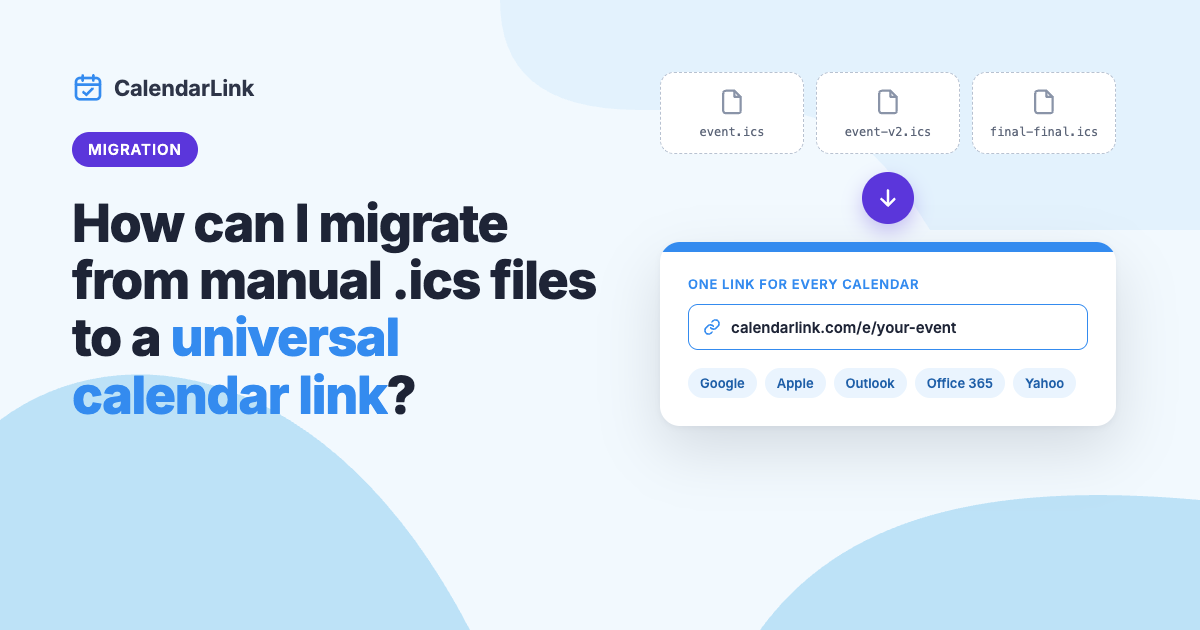
How can I migrate from manual .ics files to a universal calendar link?
Migrate from manual .ics files to calendar links in six steps, from mapping where you use them today to moving your subscribers and measuring the result.
Subscribe to receive articles directly in your inbox
Practical tips to get more people to show up: event promotion, RSVPs and calendar marketing. No spam, unsubscribe anytime.


Why calendar links beat reminder emails
An Add to Calendar link puts your event straight into your guest's own calendar. One click is enough, and the reminder pops up 30 minutes before it starts.
- Works with Google, Apple, Outlook, Office 365 and Yahoo
- Every guest sees the event in their own time zone
- Meeting links are included in the invite
- See how many people added your event
How to create your first calendar link
Create an event, share the link and follow the results, as explained in how it works.
- Add a title, date and time
- Choose a location or paste a meeting link
- Share the link in your email or on your website
- Follow views and calendar adds

Use calendar links in every campaign
Put the same link in your newsletter, on social media and on your website, and see which channel brings in the most calendar adds.
Collect RSVPs for your next event
Ask guests if they are coming, collect custom answers and export the guest list in one click.
“The best-performing call-to-action is Add to Calendar.”
Which event are you planning next?
Start with a free account and create unlimited events with CalendarLink. No credit card required.
For years, the .ics file was the standard way to share an event: create the file, attach it to an email or put it on your website, and let people open it in their calendar. It still works, but it takes manual work for every event, and it doesn't fit how people use calendars today. Files get lost in the downloads folder, don't open well on phones, and can't be changed once they're sent. In our work at CalendarLink, we often talk to teams that know they should switch, but don't know where to start because .ics files are spread across emails, templates and web pages.
Here's the answer in brief: to migrate from manual .ics files to a universal calendar link solution, first map where you use .ics files today. Then decide per use case whether you need a link to a single event or a calendar people can subscribe to, recreate those events in CalendarLink, replace the attachments and download buttons with calendar links, and help existing feed subscribers move to the new calendar. The .ics file doesn't disappear completely: it stays available behind the link for the people who need it. Below, we walk you through each step.
How to migrate from .ics files to calendar links
A migration from .ics files to calendar links comes down to six steps. You can do them for all your events at once, or start with one channel, such as your confirmation emails, and expand from there.
- Map where you use .ics files, from email templates to download buttons and calendar feeds.
- Choose per use case: a link to a single event, or a calendar that people subscribe to.
- Recreate your events in CalendarLink, by hand or in bulk.
- Replace attachments and download buttons with calendar links and buttons.
- Move your feed subscribers to the new subscription calendar.
- Test and measure before you remove the old files.
Before you start, it helps to be clear about why you're switching. Our comparison of .ics files and add to calendar links explains the differences in detail. In this article, we go one step further and cover the full migration, including the places where .ics files are easy to overlook.
Step 1: Map where you use .ics files today
Most organizations use .ics files in more places than they think. Before you change anything, make a simple list of every place where an .ics file is created or shared. Typical places include:
- Email templates, such as event invitations, registration confirmations and newsletters with an attached .ics file.
- Website pages with a "Download to calendar" link or button.
- Calendar feeds, such as a webcal or iCal link that people subscribed to for your schedule.
- Internal tools that generate an .ics file automatically, for example a booking or registration system.
- Documents and intranet pages with a link to a stored .ics file.
For each place, note who creates the file, how often it changes, and roughly how many people receive it. This list becomes your migration plan, and it shows you where the biggest wins are. A confirmation email that thousands of people receive every month usually matters more than a single download link on an old page.
Step 2: Choose between a single event link and a subscription
A manual .ics file can do two different jobs: add one event to a calendar, or keep a calendar in sync through a feed. A universal calendar link solution separates these jobs, so for every item on your list, choose the replacement that fits:
- One-off event, such as a webinar or open day: replace the .ics attachment or download with a calendar link to the event page.
- Registration for an event: replace the .ics file in the confirmation email with an RSVP event, where guests add the event to their calendar right after registering.
- Series of events, such as a schedule or season: replace the webcal or .ics feed with a collection that people subscribe to.
- Personal appointments from another tool: replace the .ics file generated per person with personalized calendar links through Smart Links or an integration.
The distinction matters, because it decides what happens when an event changes. People who added a single event keep the version they saved, while subscribers to a collection receive new and changed events automatically, usually within 12 hours and at most within 24 hours. For events that change often, a subscription is therefore the better replacement. Our page on subscription calendars explains this in more detail.
Step 3: Recreate your events in CalendarLink
Next, create your events in CalendarLink. Each event gets its own event page with one link that works for Google Calendar, Apple Calendar, Office 365, Outlook, Microsoft Teams, Yahoo and an iCal file. Why one link can serve all of these calendars is explained in our guide on creating universal calendar links.
To bring your events into CalendarLink, choose the method that fits the number of events you have:
- A handful of events: create the first one by hand and use Duplicate for the rest.
- Events on a fixed schedule: create a recurring event instead of adding every date.
- Events in a spreadsheet, CRM or other app: use Zapier, Make or n8n, so every row or record becomes an event automatically.
- Events from your own software: use the CalendarLink API, which is included in the Startup and Business plans.
- Personal appointments: use Smart Links, which create an event from the details in the link, such as a customer's appointment date.
For larger volumes, our article on generating calendar links at scale via API or integrations shows how teams automate this step.
Step 4: Replace .ics attachments and download buttons
Now work through your list from step 1 and replace each .ics file with a calendar link or button.
In emails, remove the .ics attachment and add an add to calendar button or a row of buttons, one per calendar. CalendarLink offers sharing options for email automation tools such as Mailchimp and HubSpot, and for regular email in Gmail or Outlook. Place the button right below the date and time, so it's the next step for the reader. For more tips on placement and design, see our guide on the best way to use add to calendar links in emails.
On your website, replace download links with an add to calendar button, a dropdown button or an embedded widget of the event page. If old pages or emails link directly to a stored .ics file, set up a redirect from that file's address to the new event page or collection page, so old links keep working.
In automated messages, update the templates in your registration or booking system. If the system can't create events in CalendarLink itself, connect it through Zapier or Make, so every new registration or appointment gets the right calendar link.
Step 5: Move your calendar feed subscribers
If you published an .ics or webcal feed, this step needs some extra attention. Existing subscribers can't be moved to a new calendar automatically, because the subscription lives in their own calendar app. They need to subscribe to your new collection once.
We recommend a short transition period:
- Announce the new calendar through your usual channels, with a direct link to the collection page.
- Keep the old feed online for a few weeks and add an event at the top, such as "Our calendar has moved: subscribe to the new one here", with the new link in the description.
- Stop updating the old feed once most active subscribers have moved, so there's no confusion about which calendar is current.
In CalendarLink, the collection page shows your number of active subscribers, so you can follow how many people have made the switch.
Step 6: Test and measure the result
Before you remove the last .ics files, test the new calendar links yourself. Add an event to Google Calendar, Outlook on the web and on desktop, and Apple Calendar on a phone and a computer, and check the date, time, time zone and location. Ask a colleague in another time zone to do the same.
After the switch, keep an eye on the results. With analytics on the Startup and Business plans, you can see how often your event pages are viewed and how often your events are added to a calendar. That gives you insight that an .ics file never offered, because a file doesn't tell you whether anyone opened it.
When you still need an .ics file
Moving to calendar links doesn't mean the .ics file disappears completely. Some calendar apps and systems still work best with a file, such as Outlook on the desktop or tools that only accept an attachment. That's why every CalendarLink event offers an iCal file next to the online calendars. Visitors who use Outlook on their desktop simply choose Outlook, and the calendar file opens in the desktop app.
The file contains the title, description, location and status of your event, the start and end time in UTC, which the calendar app converts to the reader's own time zone, and the reminder you set for the event. In other words, the .ics file is still there for the people who need it, but it's no longer the only option, and you no longer have to create it by hand.
Who is this migration for?
A migration from manual .ics files to calendar links is especially useful for:
- Marketing and event teams sending invitations and confirmations with .ics attachments.
- Schools, universities and associations publishing schedules through .ics or webcal feeds.
- SaaS and customer success teams sharing webinars, demos and onboarding sessions.
- Service businesses sending appointment confirmations generated by a booking tool.
- Internal communications teams sharing company events through intranet pages and newsletters.
Why choose CalendarLink for your migration?
CalendarLink gives every event one link that works for every major calendar, while keeping the iCal file available for those who need it. You can create events by hand, in bulk through Zapier, Make or n8n, with Smart Links or through the API, and replace .ics attachments with buttons that fit your emails and website.
For schedules and series, collections replace your old .ics feeds with a subscription calendar that keeps subscribers up to date automatically. And because you can see views and adds to calendar, you finally know whether your calendar invitations are being used. If attendees report that changes don't show up in their calendar, our article on why calendar invites are not updating for attendees explains the most common causes.
Frequently asked questions about migrating from .ics files
Is an .ics file the same as an iCal link?
They use the same format. An .ics file is a single file that adds one or more events to a calendar once. An iCal or webcal link points to a feed that a calendar app checks regularly, so it can show new and changed events. In CalendarLink, a single event replaces the file, and a collection replaces the feed.
How do I move a large number of events to CalendarLink?
Create your events in bulk through Zapier, Make or n8n, so every row in a spreadsheet or every record in another app becomes an event. You can also use Smart Links, or the API if you want to create events from your own software. For a handful of events, creating one by hand and duplicating it is usually the quickest option.
Will my existing calendar subscribers move automatically?
No. A subscription lives in each person's own calendar app, so subscribers need to subscribe to your new collection once. Announce the new calendar and keep the old feed online for a few weeks with a notice that points to the new link.
Do changes to an event update in people's calendars?
For people who subscribed to a collection, yes: new and changed events appear in their calendar automatically, usually within 12 hours. People who added a single event keep the version they saved, but the event page always shows the current details.
How do I convert a webcal link to an .ics file?
A webcal link is a regular web address with a different prefix. Replace "webcal://" with "https://" and open the address in your browser to download the .ics file. Keep in mind that a downloaded file is a snapshot and won't update, while a subscription does.
Conclusion
Migrating from manual .ics files to a universal calendar link solution is mostly a matter of good preparation. Map where you use .ics files, choose between single event links and subscriptions, recreate your events in bulk, replace attachments and downloads, and give your feed subscribers time to move. The .ics file stays available behind every link, but you no longer have to create, attach and update it by hand.
Leaving manual .ics files behind starts with a single event. Create your first calendar link and replace your next attachment with one link that works in every calendar.



Ready to get started? Create your free account.
No credit card required.
✔ Unlimited events ✔ Adds-to-Calendar ✔ RSVP ✔ Subscribe-to-Calendar ✔ Notifications

